How to Change My Google Authenticator (2FA)?
Here are the steps to change your Google Authenticator (2FA):
1. Open the Pintu app.
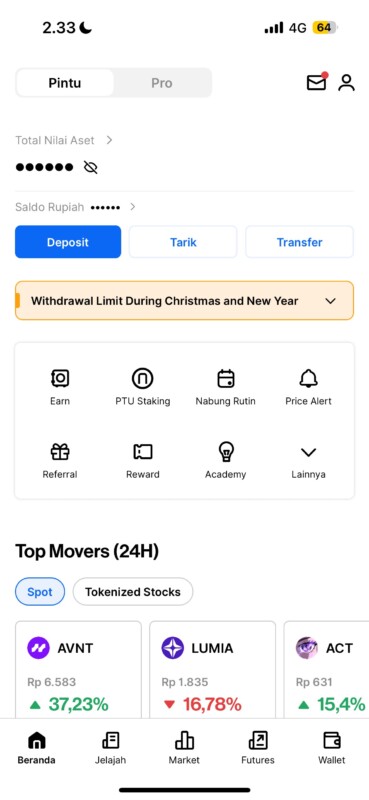
2. Tap “Profile.”

3. Under the Account section, select “Security.”
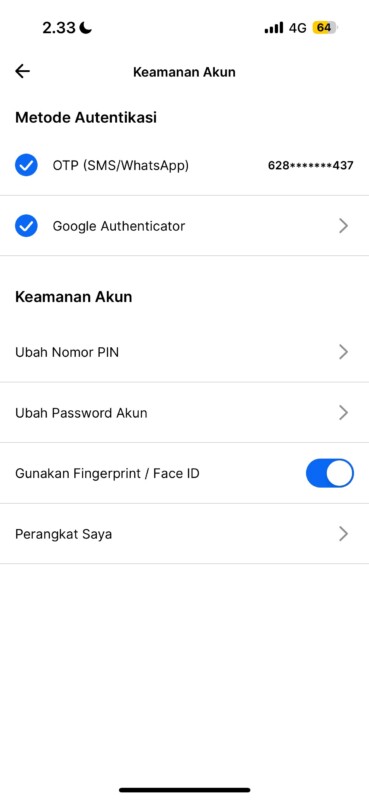
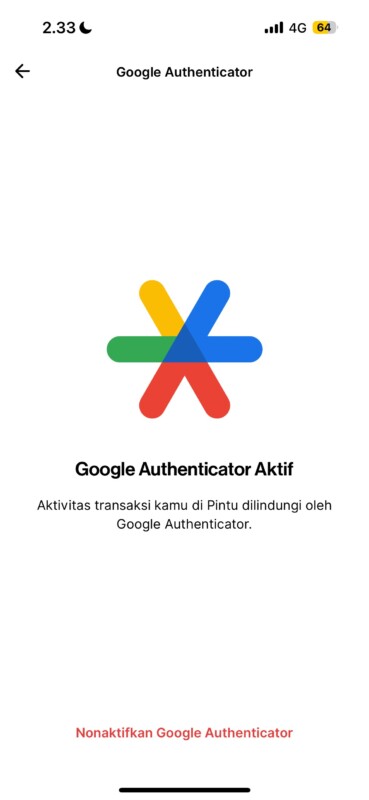
4. Tap “Google Authenticator,” then select “Disable Google Authenticator.”
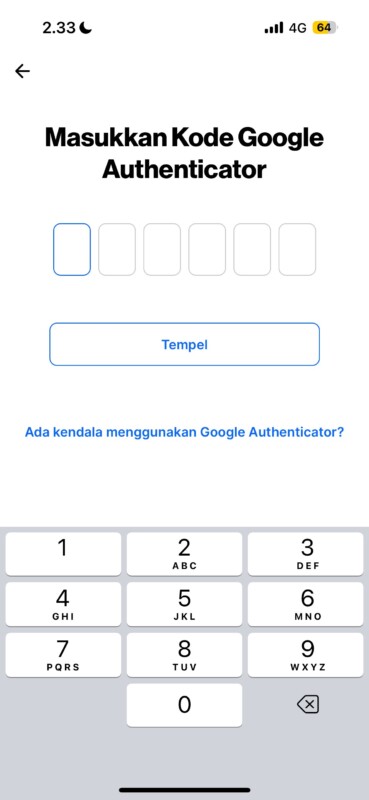
5. Enter your current Google Authenticator code, then open the Google Authenticator app again and input the code shown to confirm the deactivation request.
6. After receiving your new code, return to your Pintu Profile and tap “Enable” under Google Authenticator.

7. Enter the OTP sent to you via WhatsApp or SMS.
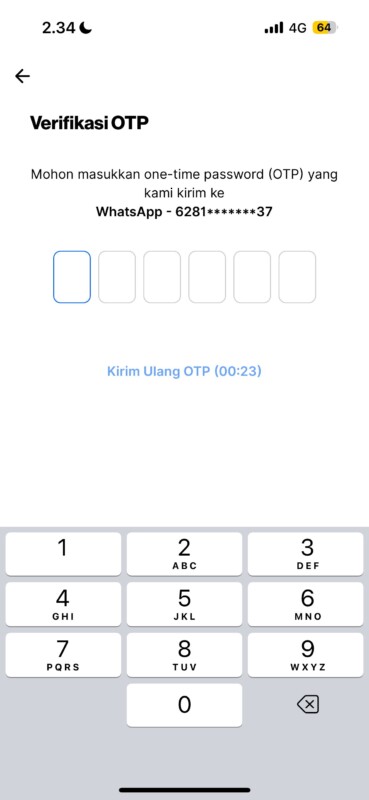
8. Copy the new Google Authenticator key displayed on Pintu.
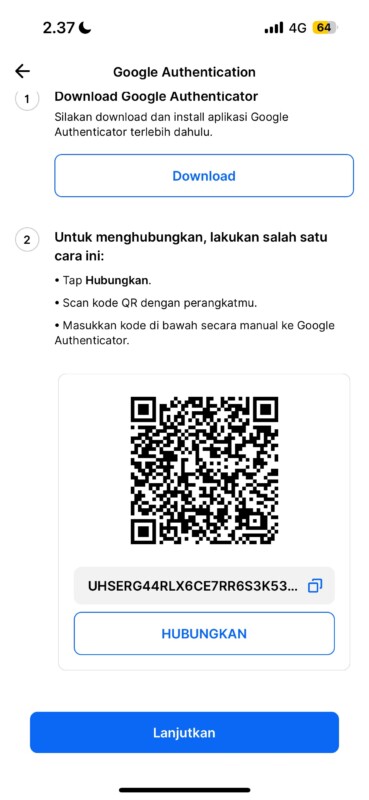
9. Open the Google Authenticator app, paste the copied key in the “Your Key” field, and tap “Add.”

10. Done! Your new Google Authenticator (2FA) code is now active and successfully linked to your Pintu account.